Leave and Request
V7.2 Stable

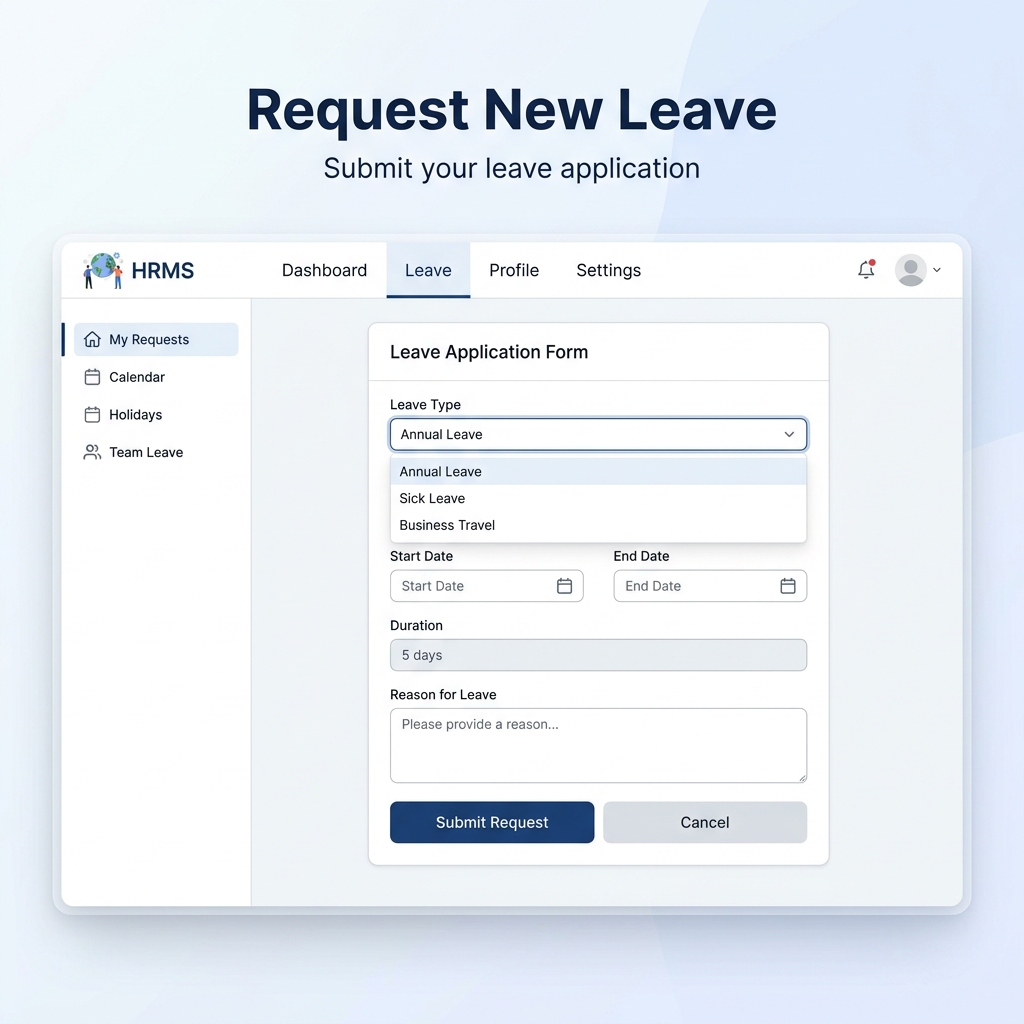
Comprehensive Leave Management

Our leave system is designed to be flexible while maintaining operational continuity.

Leave Application Form
Emergency Back-dating: System remains open for 10 days back-dated entries for emergencies.

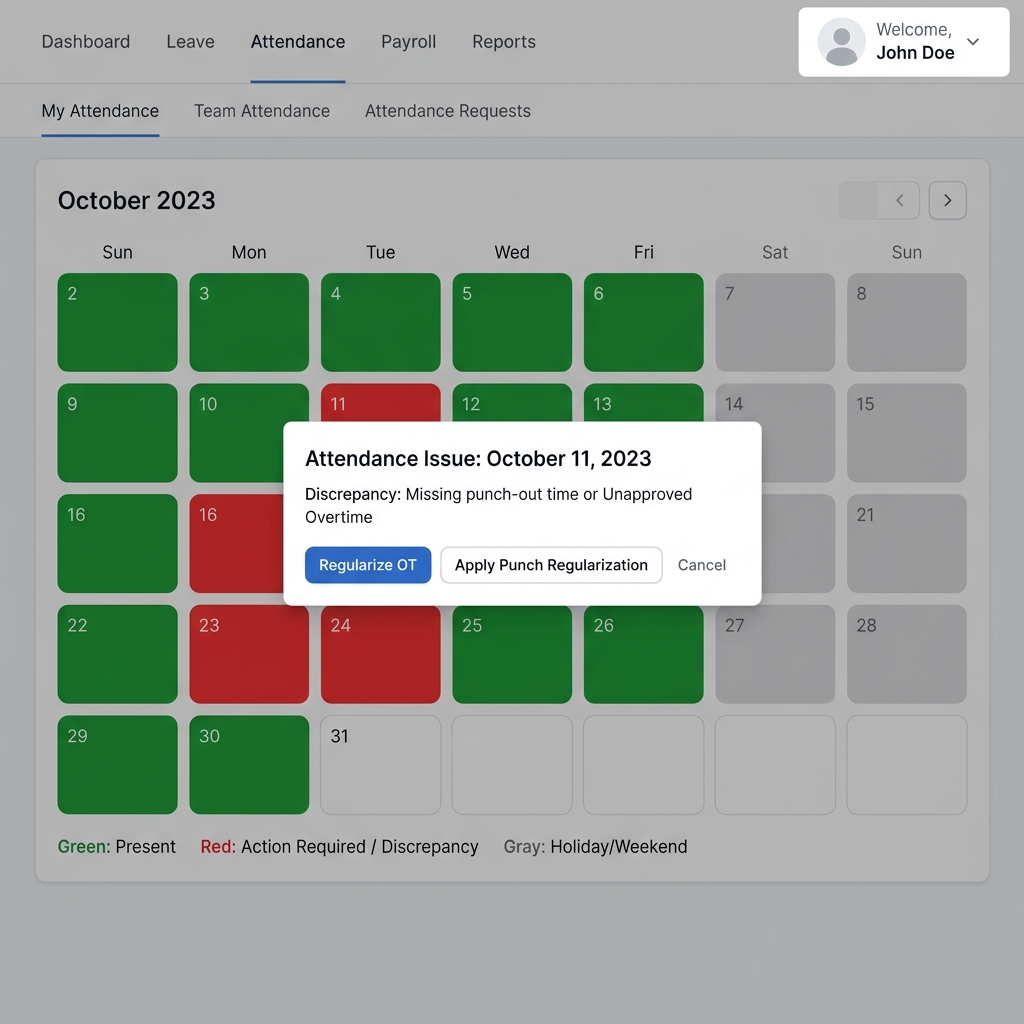
Attendance Intelligence

OT Details Dashboard

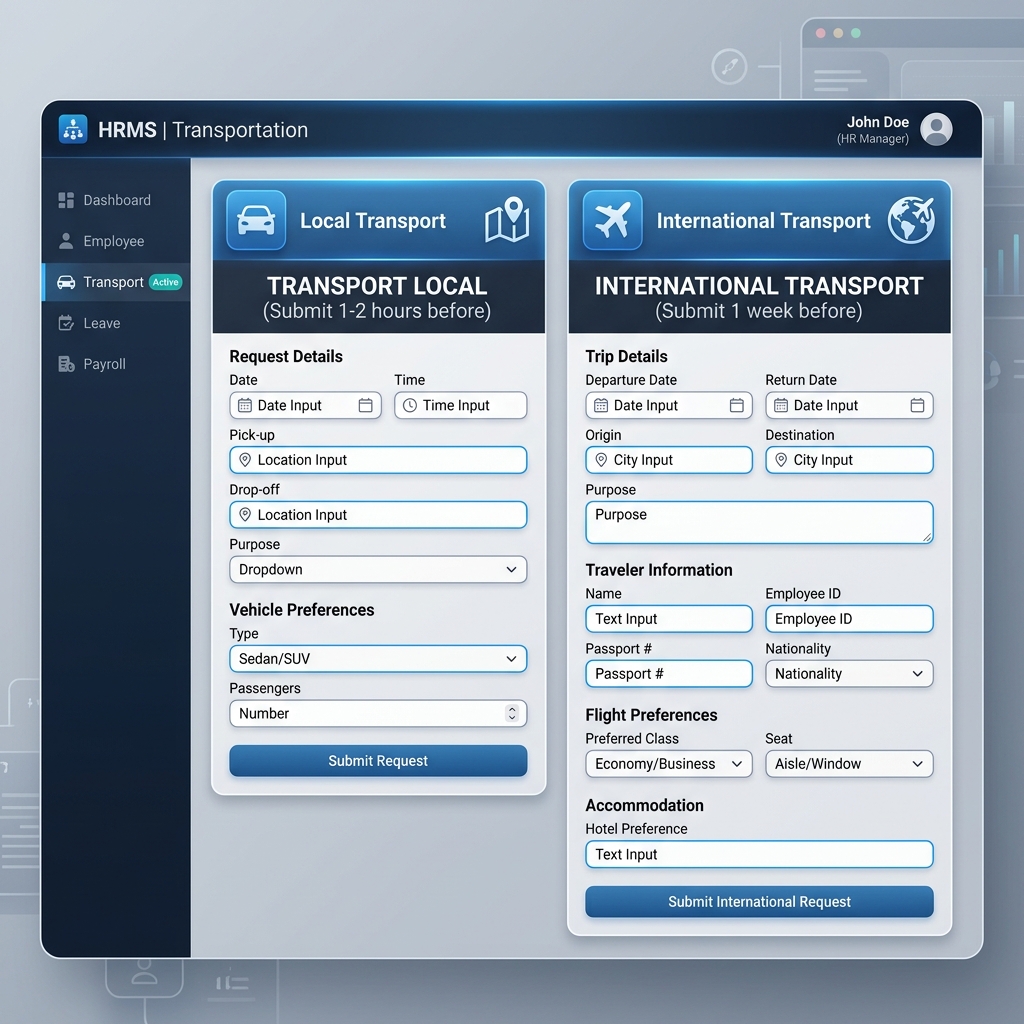
Transportation Requests

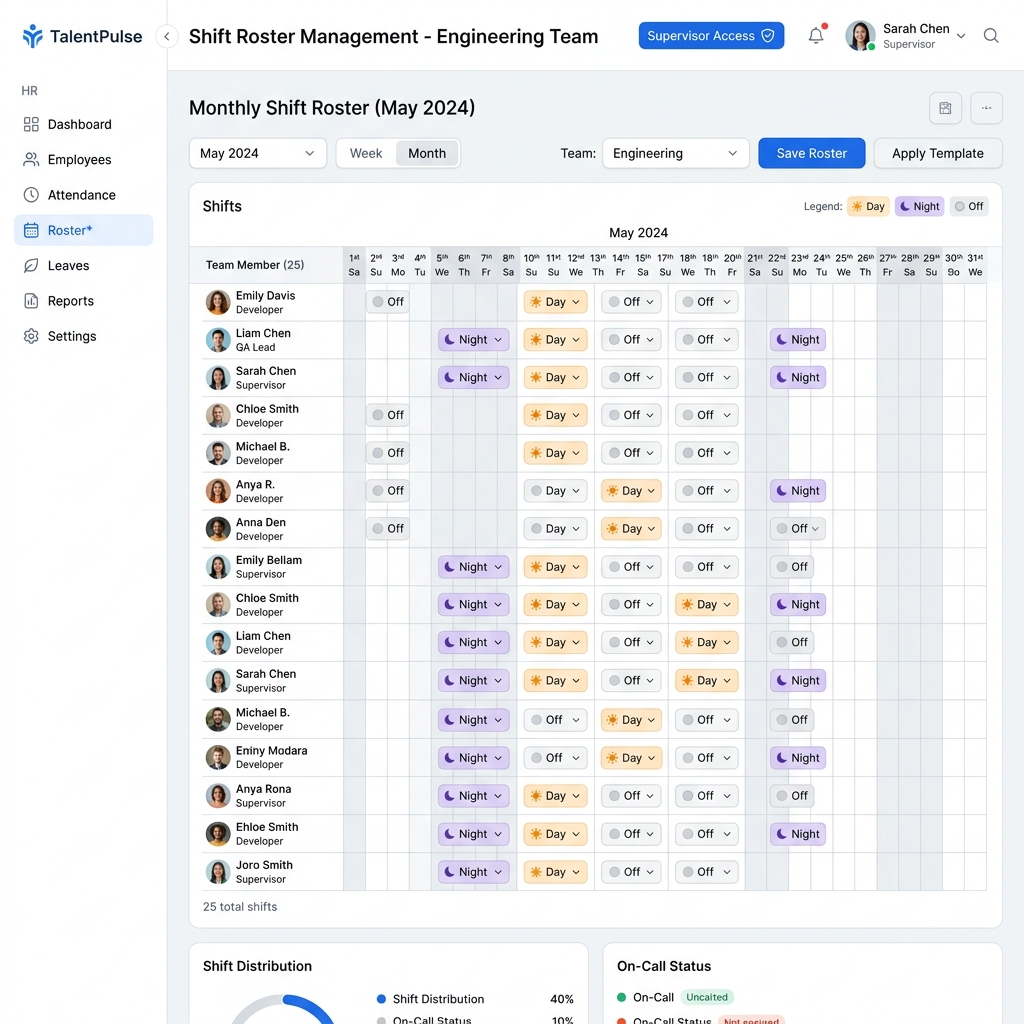
Shift Rostering

OT Calculation Logic

Timing & Weekend Rules

HOD & HOB Approvals

HR Desk

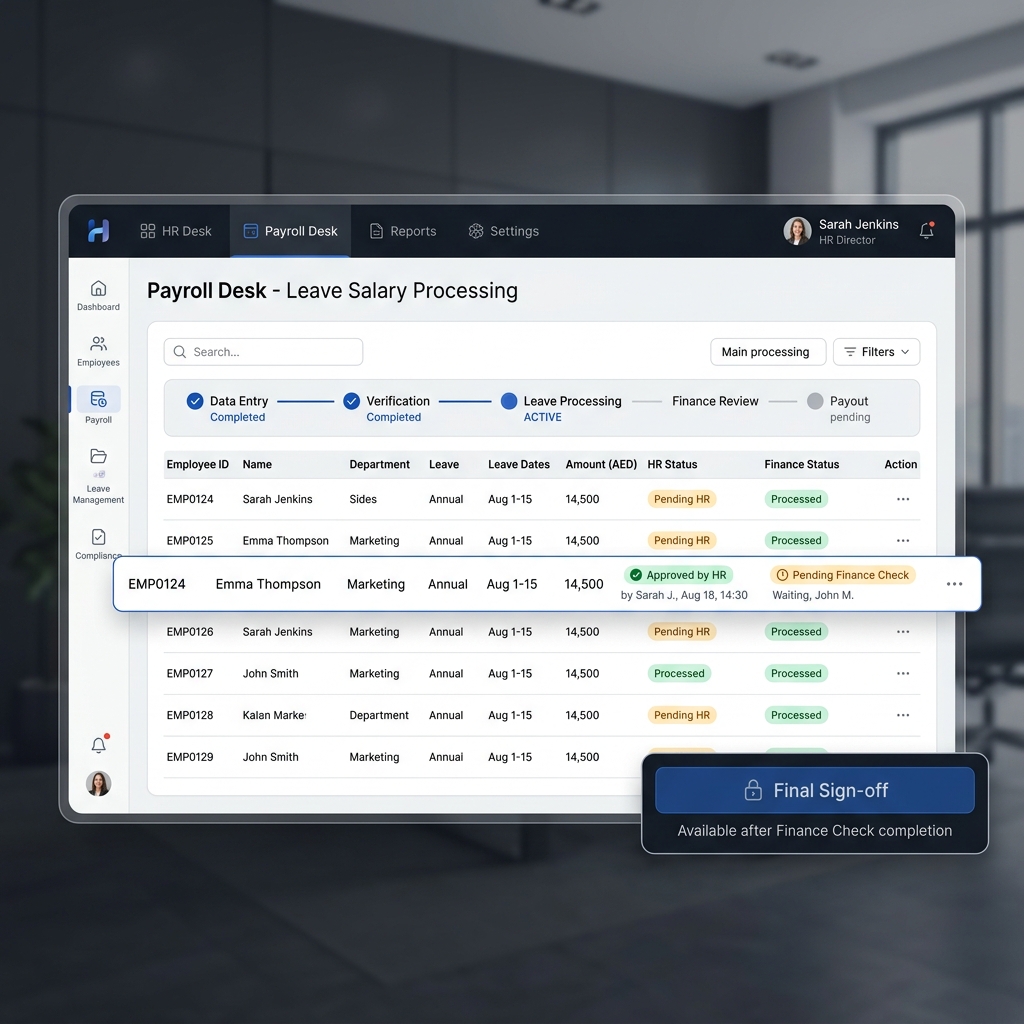
Payroll Desk

User Guide

Change Password

System Architecture & Technical Specs

Exclusive documentation for System Administrator 8705. This section details the internal mechanics of the AJ STEEL HRMS.

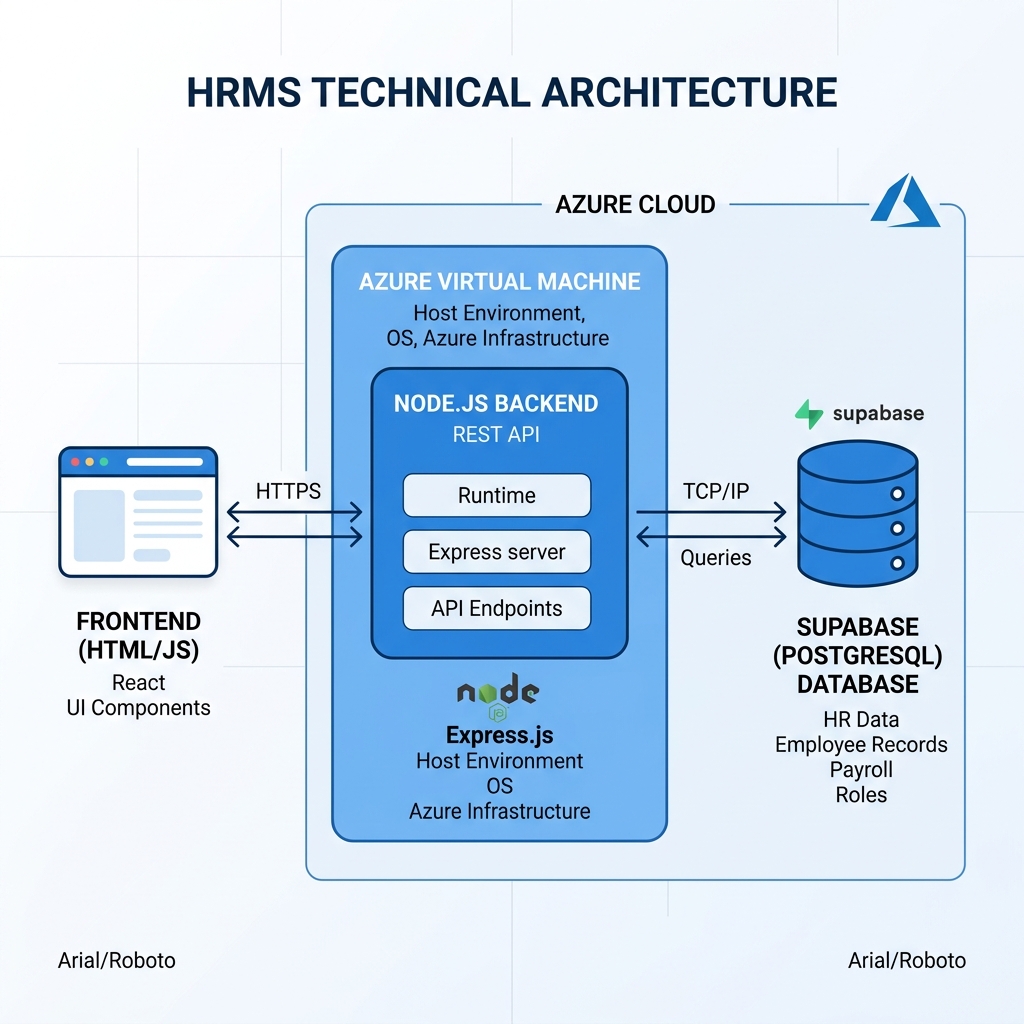
Technical Architecture

Frontend Stack

Built using HTML5 Vanilla JS and CSS3. It is a Single Page Application (SPA) architecture that manages state locally to ensure high performance even on slow connections.

Backend Engine

Powered by Node.js. The server handles API routing, authentication middleware, and secure communication with the database layer.

Database Layer

Uses Supabase (PostgreSQL). This provides robust relational data management with real-time sync capabilities for attendance logs.

Hosting & Infrastructure

Deployed on an Azure Virtual Machine (Ubuntu). Managed using PM2 for process monitoring and automatic restarts.

πŸ—ΊοΈ Process Walkthrough: The Journey of a Request

Step 1: The User Action (Frontend)
When an employee clicks "Apply for Leave," the JavaScript code creates a digital "package" containing the leave dates and the reason.

Step 2: The Secure Courier (HTTPS)
The Frontend sends this package over the internet using HTTPS. This ensures that no one can "eavesdrop" on the data while it's traveling.

Step 3: The Brain (Node.js & Express)
The envelope arrives at your Azure Virtual Machine. Express.js acts like a receptionist, directing the request to the correct department (API Endpoint), while Node.js processes the logic.

Step 4: The Storage (Supabase & TCP/IP)
The Brain sends a command to the Supabase Database through a TCP/IP connection (the secure phone line). The database saves the entry into its digital filing cabinet.

Step 5: The Confirmation
The message travels back: Database βž” Backend βž” Frontend. Finally, the user sees the Green Checkmark βœ… on their screen.


Technical Glossary:

PM2: The "Security Guard" that keeps the system running 24/7 and restarts it instantly if it crashes.

TCP/IP: The "Secure Phone Line" used for reliable communication between the Server and the Database.
🧠 Functional Coding Details

This section explains the core algorithms that drive the HRMS business logic.

1. Advanced Pairing Engine (V4.5)

Located in processAttendanceLogs, this engine converts raw punch strings into paired IN/OUT sessions.

  • 2 PM Rule: For General Staff, punches before 14:00 are assigned as IN, and after 14:00 as OUT.
  • Gap Reset: For Labours, a silence of 16+ hours automatically resets the direction to IN.
  • Debounce: Punches within 5 minutes of each other in the same direction are merged to prevent double-counting.
// Direction Guessing Logic
if (isGeneral) {
    dir = (hour < 14) ? 'in' : 'out';
} else {
    const gap = timeMs - lastTime;
    if (lastTime > 0 && gap > 16 * 60 * 60 * 1000) dir = 'in'; // Gap Reset
    else if (gap > 600000) dir = (lastDir === 'in') ? 'out' : 'in'; // Toggle
}

2. OT Calculation & Snapping

The calculateOT function handles the complex arithmetic of payable hours.

  • Shift Snapping: Punches within +/- 15 minutes of a shift start (e.g., 07:00) are snapped to the exact start time for fairness.
  • Sunday/Holiday Logic: Multipliers are applied (1.5x/2.5x) and a 0.5h break is auto-deducted if working hours exceed 5 hours.
// OT Formula
const potentialDur = outTime - nominalStart;
ot = Math.max(0, potentialDur - n - lateAdjustment);

3. Proxy Repair Engine

For designated "Proxy" users, the system injects fuzzy punches if deadlines are missed.

  • Morning Deadline: 09:00 AM.
  • Evening Deadline: 07:00 PM.
  • Fuzzy Logic: Generates a consistent but slightly varied time (e.g., 08:34:21) using a seeded random hash based on the Employee ID and Date.

πŸš€ Deployment Workflow

The deployment is automated via a custom PowerShell script deploy.ps1. It uses scp to securely transfer files to the Azure production environment.

# Deployment Command
powershell -ExecutionPolicy Bypass -File .\deploy.ps1

# Target Server
IP: 40.119.176.75 (Azure)
User: azureuser
Path: /var/www/hrms
                        

🧠 Core Logic Engine

The heart of the system resides in calendar_logic.js. This script processes raw punch data from SmartOffice machines and applies business rules:

  • Shift Windows: Automatic rounding of punch times to designated shifts.
  • OT Multipliers: Dynamic application of 1.25x, 1.5x, or 2.5x based on day type.
  • Penalty Engine: Real-time deduction of late-in minutes from OT pools.